Guide
What is OCR? From a scanned page to usable text
Published
AT A GLANCE
Learn what OCR reads, how it differs from data extraction, and how to test it on invoices and receipts without confusing text with approval.
THE PROCESS AT A GLANCE
From document to decision
A simple review pattern to adapt to each workflow.
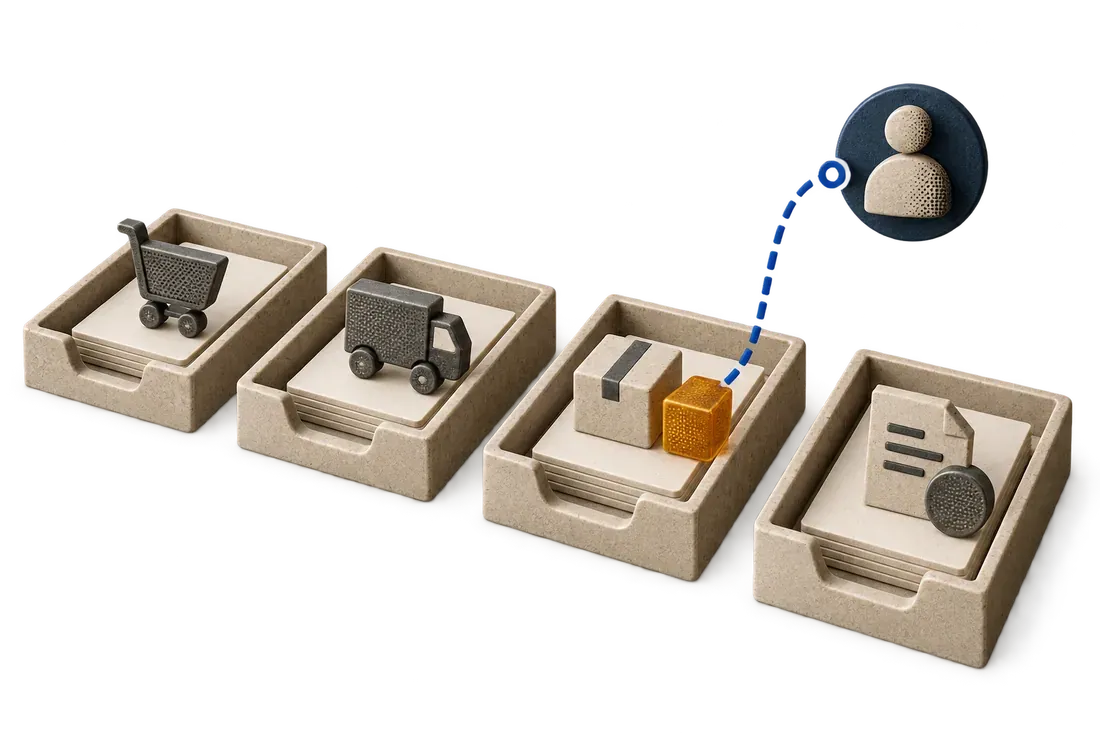
- SourceIdentify the document and source of truth.
- ExceptionShow what is missing or does not match.
- DecisionRoute the exception to the responsible person.
OCR means optical character recognition. It turns text visible in an image, photograph or scanned PDF into machine-readable text. That lets software search or copy information that previously existed only as pixels. It is a reading step, not a decision about whether a document is correct.
A PDF is not always an image
Try selecting a sentence in your PDF. A digitally generated file may already contain usable text, so direct extraction can be simpler. A scan may require OCR. Some files combine text layers and scanned pages; test the actual pages rather than assuming every PDF needs the same treatment.
From photograph to candidate fields
A practical workflow keeps the original, checks that every page is present, reads the text and maps relevant values into fields. Reading 'Total: 1,250.00 MAD' is different from identifying the payable total, its currency and the invoice it belongs to. Field extraction adds that structure; validation checks it against your rules.
Fictional example: a receipt shows '1 250,00 MAD'. OCR returns the characters, then a field parser proposes amount 1250.00 and currency MAD. The original display remains available beside those values. The workflow must check the decimal convention and whether this is a total, a subtotal or a payment amount before recording it.
What can go wrong?
Blurred photographs, cropped corners, faint printing, handwriting and complex tables are useful test cases. A wrong digit in an invoice number can send a correct amount to the wrong record. Clean-looking output still needs checking; a missing project code cannot be recovered simply by reading more confidently.
Some engines return confidence scores. Microsoft explains that thresholds depend on the use case and human review. Treat a score as a routing signal, not a guarantee that a field is correct. Validate thresholds on your own documents and check high-consequence fields independently.
Try a small test before choosing a tool
Take a permitted sample with clear scans, ordinary photographs and difficult cases. Write down the correct supplier, invoice number, currency and amount yourself. Compare the output field by field. Count corrections and total review time, rather than judging the tool by one attractive demonstration.
Keep missing and uncertain values visible. Define which cases need a new photograph, which require a reviewer and which may proceed after checks. Before exporting, confirm the receiving software's field formats and duplicate handling. Also compare against its existing capture or import features.
When is OCR enough?
OCR may be enough for searchable archives. Structured invoice entry needs extraction and validation as well. Classifying mixed documents, handling exceptions and transferring approved records is a broader document-processing workflow. Start by naming the output you need: searchable text, proposed fields or an approved record.
Sources and further reading
Microsoft: Document Intelligence transparency note
Apply this to your workflow
To scope a document workflow, prepare a permitted example, the required fields, your current system and the person who reviews exceptions. Begin with synthetic examples when confidential data is unnecessary.